
31. 03. 2026
Log-SIEM, NetEye, Unified Monitoring

As you should already know, with NetEye 4.45 we officially began the transition from Icinga IDO to IcingaDB (see NetEye 4.45 Release Notes | www.neteye-blog.com). This means that IDO has been deprecated on NetEye. We’re now reaching the end of this transition: with NetEye 4.48 IDO will be officially removed from your NetEye without further ado.
This obviously has some impact on NetEye Extension Packs as well: nep-common and nep-monitoring-core make use of Icinga IDO in different ways, so if you have them installed on your NetEye you should do some cleanup before actually upgrading the system to version 4.48.
Do I have to do something before upgrading?
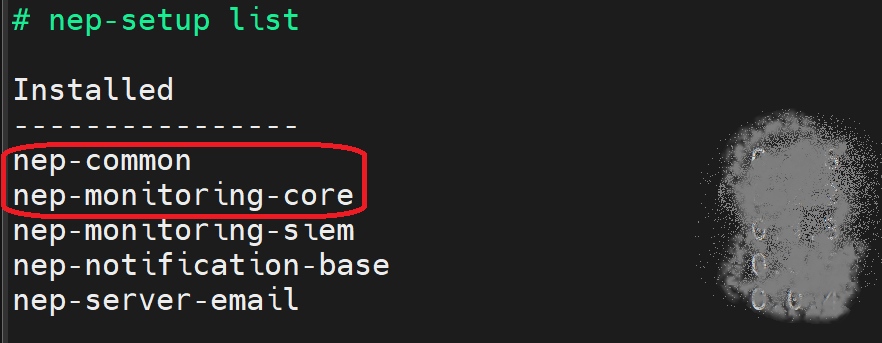
If you’re reading this, you’ll most likely have to. To be really sure, you have to check if NEP is installed on your NetEye and if you’re using either nep-common or nep-monitoring-core. You can use nep-setup list to see the list of installed NEPs: If the command exists and one or both NEPs are reported in the output, you will in fact have a few things to do.
In this screenshot, you can see an example of the output of nep-setup on a system where both nep-common and nep-monitoring-core are installed.
After you’ve performed all the cleanup steps related to NEP, be sure to verify all prerequisites before upgrading to NetEye 4.48 as reported in the NetEye Guide (see https://neteye.guide/4.48/references/update-upgrade/upgrade.html#prerequisites for single nodes or https://neteye.guide/4.48/references/update-upgrade/cluster-upgrade.html#prerequisites for cluster deployments).
How to fix nep-common
This is not blocking for the upgrade procedure, you can fix it after the upgrade
NEP nep-common provides a Grafana data source that can be used by dashboards to get data from the Icinga IDO Database. This data source is stored in Main Org., is of type mysql and is named mysql-icinga. This data source poses no harm to anything, but after upgrading NetEye to 4.48, the underlying database will no longer be updated. So all dashboards using this data source will stop displaying updated data.
As I said before, this doesn’t pose a real threat to the upgrade procedure; though you’ll have to take corrective actions after the Upgrade:
- Upgrade NEP to the latest release of NetEye 4.48; this will provide a new Grafana data source that allows access to the IcingaDB DB (its name is
icingadb-mysql) - Update all dashboards to use this new data source; remember that the DB schema is completely different, so you’ll also have to update all SQL statements
- Drop the data source
icinga-mysql
This procedure cannot be automated, but you can take advantage of some AI tools to get some help in translating the SQL queries to the new schema.
How to fix nep-monitoring-core
If not done, neteye upgrade will not be allowed to run
NEP nep-monitoring-core actually monitors the status of the IDO connection. This configuration is no longer present on NEP for NetEye 4.48, but it’s still used on NEP for NetEye 4.47. Again removal cannot be managed automatically, so you need to remove these items by yourself.
You have to:
- Remove the Service Object that monitors IDO status
- Remove the Service Template that monitors IDO status
- Optionally, remove the Data Fields and Data Lists related to IDO Settings
- Make sure to not update
nep-monitoring-corebefore installing the latest version of NEP for NetEye 4.48
Everything has to be done in the NetEye Web UI, so make sure you are logged in with Administrative Privileges.
Remove the Service Object that monitors IDO status
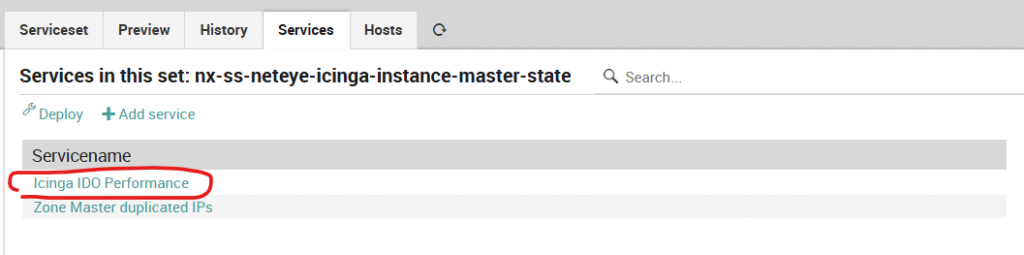
- Go to Director and look for the Service Set
nx-ss-neteye-icinga-instance-master-state - Go to the Services tab and look for the Service
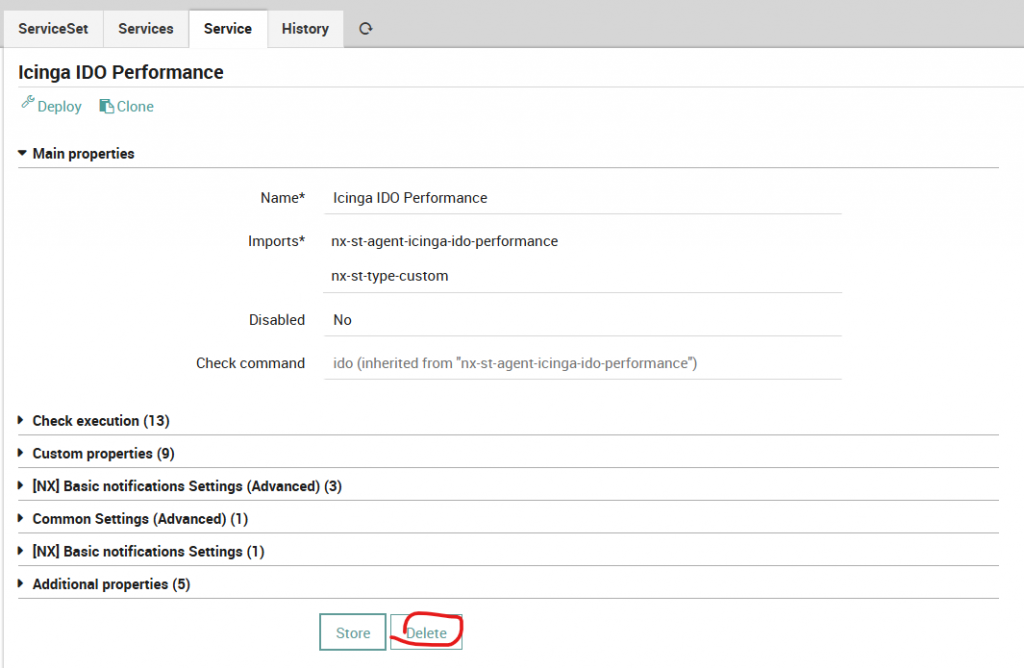
Icinga IDO Performance - Open the service, then delete it
Remove the Service Template that monitors IDO status
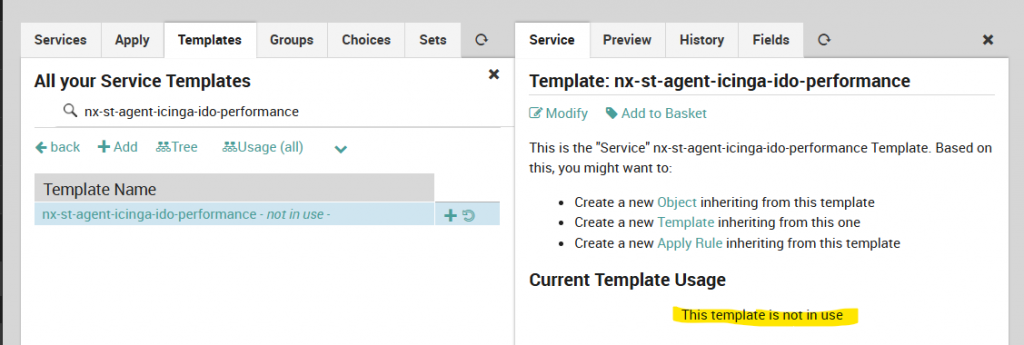
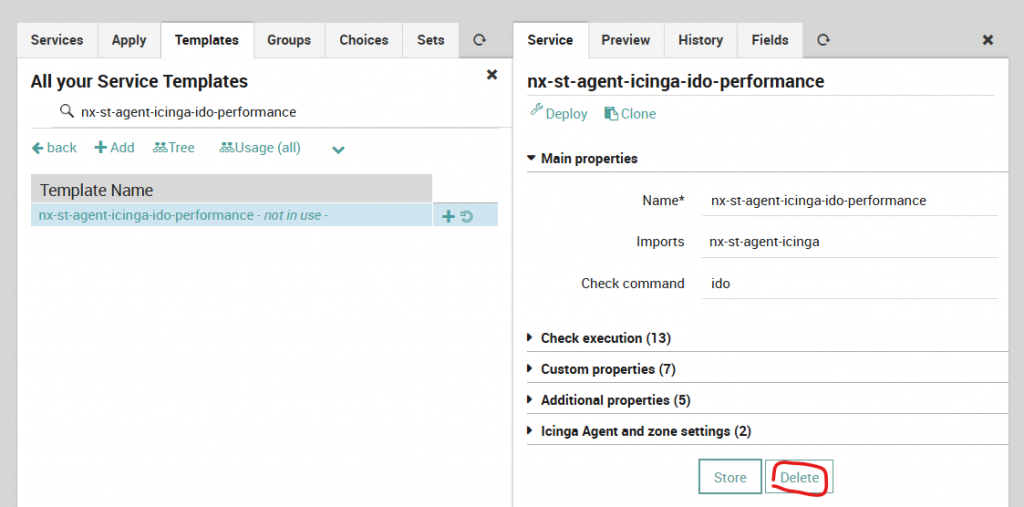
- Go to Director and look for Service Template
nx-st-agent-icinga-ido-performance - Ensure that this Service Template is not in use
- If it is in use, follow the references and delete all services using it
- Open the Service Template, then delete it
Remove the Data Fields and Data Lists related to IDO Settings (optional)
This step is not required since it’s related to Director UI Elements, but it should be done to make everything neater.
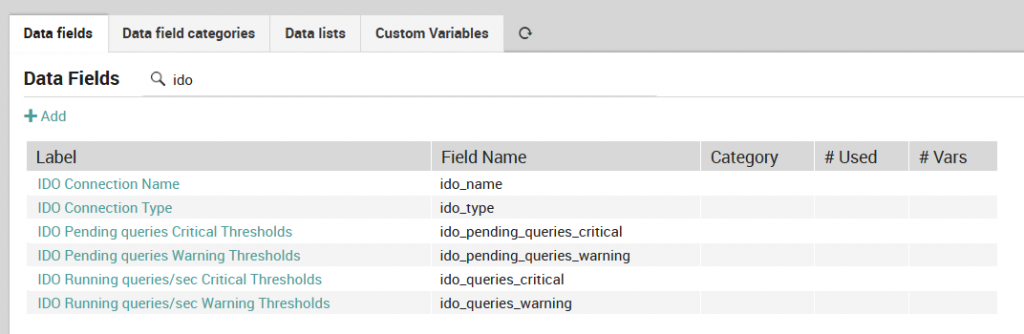
- Go to Director and open the Data Fields list
- Look for all Data Fields having
IDOin their name; you should see at least these Data Fields:ido_nameido_typeido_pending_queries_criticalido_pending_queries_warningido_queries_criticalido_queries_warning
- The Data Fields reported above should have no counters in the # Used and # Vars fields
- If not, they are used elsewhere, and should not be removed, so skip this step
- Delete each one of them
- Move to the Data lists tab and look for Data List
[NX] Icinga IDO Types List - Edit it, then Delete it

Further remaining steps
Now, you can check the integrity of your configuration by committing it with a Deploy. If everything is all right, Deploy should succeed. Now, you can proceed with the upgrade procedure. Make sure to run all Prerequisite Checks to ensure the safety of the whole procedure.
After the Upgrade is completed, as usual, update NEP RPM and then use nep-setup to update all required NEPs.
These Solutions are Engineered by Humans
Did you find this article interesting? Does it match your skill set? Our customers often present us with problems that need customized solutions. In fact, we’re currently hiring for roles just like this and others here at Würth IT Italy.
Author

Latest posts by Rocco Pezzani
18. 03. 2025
Icinga Web 2, ITOA, NetEye, UI, Unified Monitoring
A First Step towards Multitenancy in Icinga 2
31. 12. 2024
Business Service Monitoring, ITOA, NetEye, SLM, Unified Monitoring
Display a Service’s Availability with ITOA
30. 11. 2024
Business Service Monitoring, NetEye, Unified Monitoring
The Story of a Strange Business Process