
23. 12. 2024
Mirko Morandini
Asset Management, Service Management
GUI-based Setup of GLPI Network Inventory: The Agent Toolbox
GLPI agents have various additional functionalities, from network discovery to remote inventory and ESX inventory. These can be controlled either directly from the command line (see my colleague’s blog https://www.neteye-blog.com/2024/07/glpi-device-discovery/ for some practical examples) or in a centralized way from the server, via the GLPI Inventory plugin (https://www.neteye-blog.com/2024/12/gui-based-glpi-network-inventory-setup-with-the-glpi-inventory-plugin/). There’s also another handy way to configure these inventories in a local, decentralized way: The GLPI Agent TOOLBOX.
The GLPI Agent Web Server
Everybody who has installed and tested GLPI agents knows about the small web server that the agent opens at http://localhost:62354/, which just gives some basic status and version information along with a single link to http://localhost:62354/now to force an inventory. As you probably know, this web server can be disabled by configuring the agent with the parameter “no_httpd = 1”. We encourage you to disable this internal web server on any production environment where this functionality is not needed.
The GLPI Agent Toolbox
The Toolbox, a web interface for configuring inventories, is disabled by default. It needs to be enabled by editing the file toolbox-plugin.cfg in the agent configuration folder C:\Program Files\GLPI-Agent\etc\ on a standard Windows installation. Copy this file to “toolbox-plugin.local” , set the parameter “disabled=no” and comment the last line “#include “toolbox-plugin.local”.
Now the toolbox is available under http://localhost:62354/toolbox. Before you can use it though, you need to enable all options in the navigation bar: click on the cog/settings symbol in the upper right corner, and then select all entries in the section “Navigation bar”.
Toolbox Configuration
Let’s see how to configure the agent for network inventory.
First, select “Scheduling” and configure either a time slot for agent execution or else an execution delay (e.g. 2h, 24h). Then, define your SNMP communities in the “Credentials” section. Here, define the credential type. Importantly, unlike with the GLPI inventory plugin, here the credential type defines the functionality that will be executed: snmp, ssh/winrm (remote computer inventory), or esx. Here, select “snmp”, chose the SNMP version and fill in the community.
Now, define one or more IP ranges and associate the SNMP credentials:
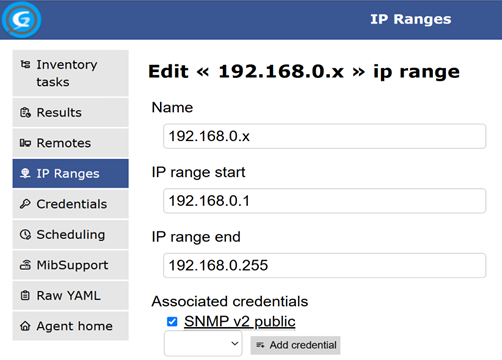
Voilà! Go to the first tab and add some “Inventory Tasks” for the network scan by putting together the IP Ranges, the time scheduling, the number of scan threads to run in parallel and the target: you can either store the data locally or just send it to the GLPI server. You don’t need to define the server here. The toolbox always uses the same server defined for the agent itself.
Everything is ready now – for a test, press “Run task”. The progress bar advances, and eventually the results are displayed. Note that the toolbox interface performs both the network discovery and network inventory tasks simultaneously.
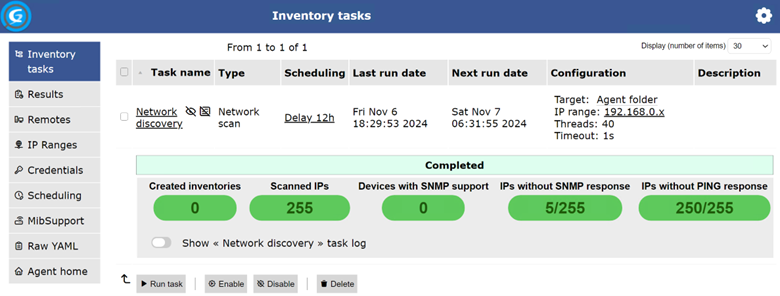
On the results page you can view all the details and even download all the scan results in JSON. The scan results are also automatically sent to the GLPI server.
And with this you have now seen the third possibility of using a GLPI Agent to scan and inventory your network. The Toolbox can be used when centralized management is not desired or is not possible. Be aware that in this testing example we enabled the toolbox for all users. Please read about how to limit access to single IP addresses in the official documentation: https://glpi-agent.readthedocs.io/en/latest/plugins/toolbox-plugin.html.
Let’s rock IT with GLPI!
These Solutions are Engineered by Humans
Did you find this article interesting? Does it match your skill set? Our customers often present us with problems that need customized solutions. In fact, we’re currently hiring for roles just like this and others here at Würth Phoenix.

Mirko Morandini
Mirko Morandini, PhD, is a senior consultant in IT Service Management and Asset Management, with over a decade of experience and numerous successful projects in Germany, Austria and Italy. As the GLPI advocate at Würth IT Italy, Mirko is passionate about open source solutions - and when he’s not optimizing IT processes, he enjoys spending time with his family and playing and conducting wind band music.
Author

Latest posts by Mirko Morandini
30. 09. 2026
Asset Management, GLPI, Knowledge Management, Service Management
GLPI 12: A Practical Review of the Major Changes
31. 03. 2026
Asset Management, GLPI, Service Management
GROUP-based Asset Permissions in GLPI 11: GLPI Rights Management Redefined
29. 09. 2025
Asset Management, GLPI, Knowledge Management, Service Management
Getting the M(u)st out of GLPI
After following the instructions and attempting to run a scan, the following appears: ERROR ! netdiscovery and netinventory tasks are not installed
Where or how do I install these two items? I am unable to find documentation on how to perform this in GLPI or on-line.
Hi Curtis,
These 2 tasks can be installed when installing the GLPI Agent MSI package manually, via parameters, or, in Linux, with the RPMs, see the Glpi agent download page in Github