09. 10. 2023
Development, DevOps

30. 09. 2026
Valentina Da Rold
Atlassian, Automation
Link Jira Issues Across Separate Atlassian Cloud Sites with Automation

Jira Automation can create native issue links inside one site, but the standard link action doesn’t cover issues stored on two separate Atlassian sites. You can work around this limitation by creating reciprocal application links and calling Jira’s remote issue link REST API. The reliable pattern uses one authenticated request for each direction, with a stable globalId for safe retries.
A distributed organization may operate separate Jira Cloud sites for different business units, customers, products, or regulatory boundaries. Teams still need to connect related work items, such as a platform defect in one site and a customer-specific implementation task in another.
The native Jira Automation action for linking issues works well when both issues belong to the same Jira site. It doesn’t provide a direct way to create a native link between two issues hosted on different sites. A URL pasted into a description or a generic web link gives users navigation, but it doesn’t provide the remote issue-link behavior and metadata that Jira expects.
The practical workaround is to use remote issue links through the REST API. This requires more setup than a native action, but it keeps the process inside Automation and avoids building a separate integration service for a small number of cross-site workflows.
Specific Use Case
Assume a company runs two Jira Cloud sites:
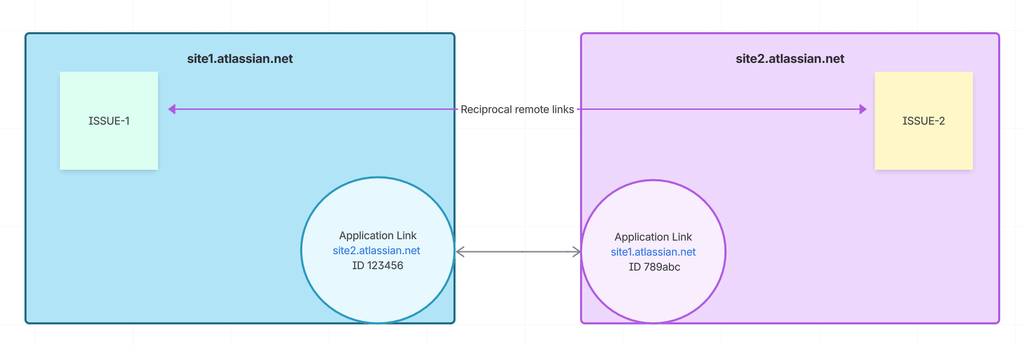
site1.atlassian.net, managed by the platform engineering teamsite2.atlassian.net, managed by a product delivery team
A platform engineer creates ISSUE-1 on site1, while a product manager creates ISSUE-2 on site2. The teams want the two issues to appear as related work items on both sides.
These constraints are typical: The link should be created automatically, the two sites must retain separate administrators and permissions, the rule must be safe to retry, and the solution shouldn’t require a Marketplace app.
Constraints and Assumptions
- The primary environment is Jira Cloud, and both sites are reachable over HTTPS
- Jira administrators can configure application links, while the Automation actor can create remote links
- Credentials use an approved secret or connection mechanism – never place an API token in the JSON body
- Site1’s link to site2 has ID
123456; site2’s link to site1 has ID789abc
Implemented Solution
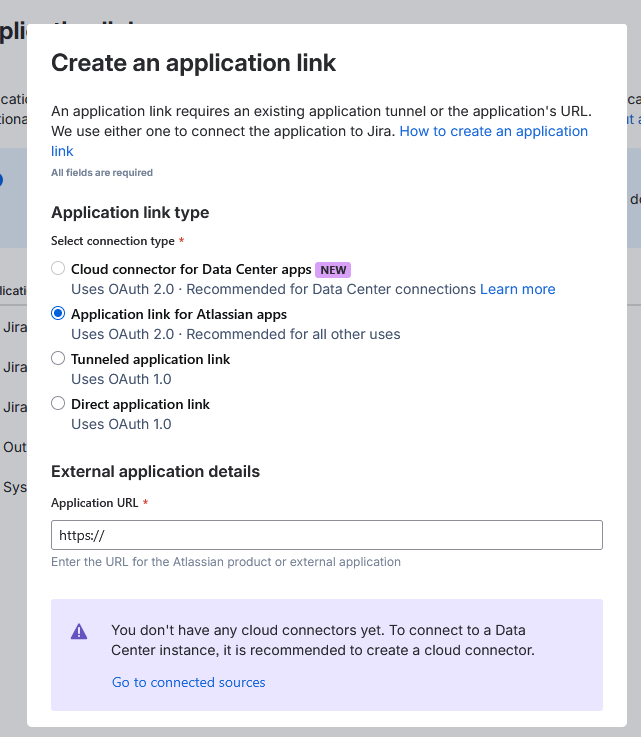
First, connect the sites. In each Jira administration area, open Jira settings > Apps > Application links, create a link to the other site, and choose Direct application link. Configure both directions and verify the connection.
Next, configure Automation with Send web request. Call the remote-link endpoint on the site that owns the issue being updated:
POST https://site1.atlassian.net/rest/api/3/issue/ISSUE-1/remotelink
The body identifies Jira as the remote application, describes the relationship, and provides the remote issue’s title, summary, and URL. The globalId combines the application-link ID and remote issue ID. You should keep it stable so that retries update the same remote link instead of creating duplicates.
In this pattern, send a second request in the opposite direction:
POST https://site2.atlassian.net/rest/api/3/issue/ISSUE-2/remotelink
Treat the calls as separate operations: Log each response and retry only the failed direction. One successful response doesn’t prove that both issues display the link.
Implementation Plan and Examples
- Create and verify the direct application link in both directions
- Record each application-link ID, which you can copy from the edit URL or inspect remote-link metadata after a test link
- Create an Automation rule with an issue, manual, or transition trigger
- Populate the target key, ID, summary, and URL from the trigger, lookup actions, or variables
- Add the first Send web request, enable wait for the response, then add the reverse request
- Log status and response data without exposing credentials
Example payload for ISSUE-1 linking to ISSUE-2:
{
  "application": { "name": "Jira", "type": "com.atlassian.jira" },
  "relationship": "relates to",
  "object": {
    "summary": "{{issue.summary}}",
    "title": "ISSUE-2",
    "url": "https://site2.atlassian.net/browse/ISSUE-2"
  },
  "createReciprocalLink": true,
  "globalId": "appId=123456&issueId={{issue.id}}"
}
For the reverse request, call site2, use appId=789abc, and provide the details of ISSUE-1:
POST https://site2.atlassian.net/rest/api/3/issue/ISSUE-2/remotelink
globalId: appId=789abc&issueId={{issue-1.id}}
Replace relates to with a relationship such as blocks or is blocked by when appropriate. Keep the direction consistent.
Security, Permissions, and Compliance Considerations
- Use a dedicated service account with only the required project and issue permissions
- Store API tokens or OAuth credentials in the approved secret mechanism, and restrict who can edit the rule
- Prefer OAuth 2.0 when enterprise policy prohibits personal tokens
- Confirm outbound access and data-transfer rules for both sites
- Send only the summary, key, and URL unless other fields are necessary
- Audit rule changes, application-link changes, failures, and credential rotation
When native Jira Automation can’t link issues across separate sites, remote issue links provide a practical workaround.
References and Further Reading
- Jira Cloud REST API: Remote issue links
- Use AppLinks to link to Atlassian apps
- Smart values in Atlassian Automation
These Solutions are Engineered by Humans
Did you find this article interesting? Are you an “under the hood” kind of person? We’re really big on automation and we’re always looking for people in a similar vein to fill roles like this one as well as other roles here at Würth IT Italy.

Valentina Da Rold
Hi, I'm Valentina and I'm a Frontend Developer at Wuerth IT Italy. I started out my career applying my Cryptography skills to coding, but really quickly fell in love with the web. I have been making websites and applications since 2012 and I still can't get enough of it. Along the way I found a passion for front-end development, and I use this passion to create interfaces that solve problems. When I'm not creating beautiful solutions, I enjoy cooking or doing sport, while listening to beautiful music.
Author

Latest posts by Valentina Da Rold
30. 06. 2026
Atlassian, Development
Build a Readable List of Confluence Spaces with the REST API and an Auto-Generated Page
30. 03. 2026
Atlassian, Automation
Automating Confluence Page Status at Scale: A Practical Workaround
11. 12. 2025
Atlassian, Development
Boosting Atlassian Integrations with the atlassian-python-api Library
29. 09. 2025
Atlassian, Development
Syncing Entra ID Groups and Members to Jira CMDB via Atlassian SCIM API: Key Lessons Learned
04. 06. 2025
Atlassian, Automation, Development
Automating Asset Delivery Tracking in the Jira Customer Portal: A Developer’s Guide