


02. 04. 2026
NetEye, Unified Monitoring

30. 08. 2018
Alessandro Romboli
NetEye, Unified Monitoring
Microsoft Remote Desktop Services: Customization and Performance
A Little History
The Microsoft Remote Desktop Services (RDS) architecture is widely used to publish centralized Desktop and Windows Applications to users from remote sites. With RDS, only the software user interfaces are transferred to the client system. All input from the client system is transmitted to the server, where software execution takes place.
RDS was first released as “Terminal Server” in “Windows NT Server 4.0 Terminal Server Edition”. Starting with Windows 2000, it was an optional role.
Early releases only allowed connections through a single TCP port: 3389/TCP.
Windows Server 2008 introduced the Remote Desktop Gateway service component, also known as RD Gateway, which can tunnel the RDP session using an HTTPS channel, which is most suitable for Internet service publishing.
Early RDS versions could only share the whole Windows Desktop on a remote client. Beginning with Windows Server 2008 R2 and Windows XP, RDS can share single Applications.
Windows Server 2012 introduced session data streaming using a UDP flow: typically, on port 3389/UDP. This stateless data flow allows better performance via connections with a limited packet loss.
Windows Server 2016 introduced User Profile Disks to host users’ roaming profiles.
Modern RDS architecture can become very complex, with Roles hosted on several servers:
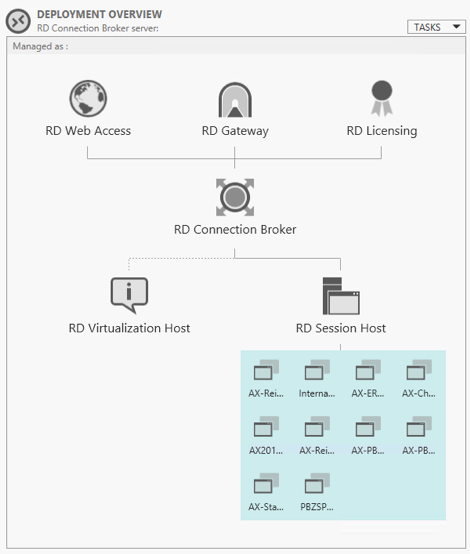
RDS User Interface Customization
The preferred way to access RDS services is through Web Access, either directly from internal LAN or remotely through the RD Gateway component which acts as a reverse proxy.
The default web interface shows the published Desktops and the Remote Applications.
Unfortunately, the user interface cannot be easily customized. But in any event, some interesting basic results can be achieved with just a few configuration changes such as:
Hiding the “Connect to a remote PC” tab.
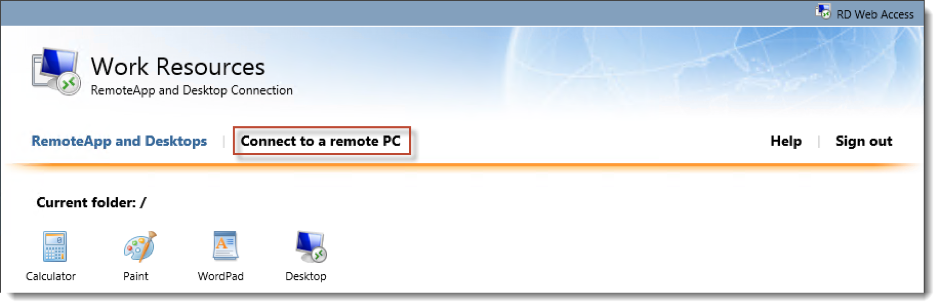
This tab allows users to connect to a remote PC of their choice (almost useless, and always dangerous).
Go to the RD Web Access server open Internet Information Services Manager (IIS Manager).
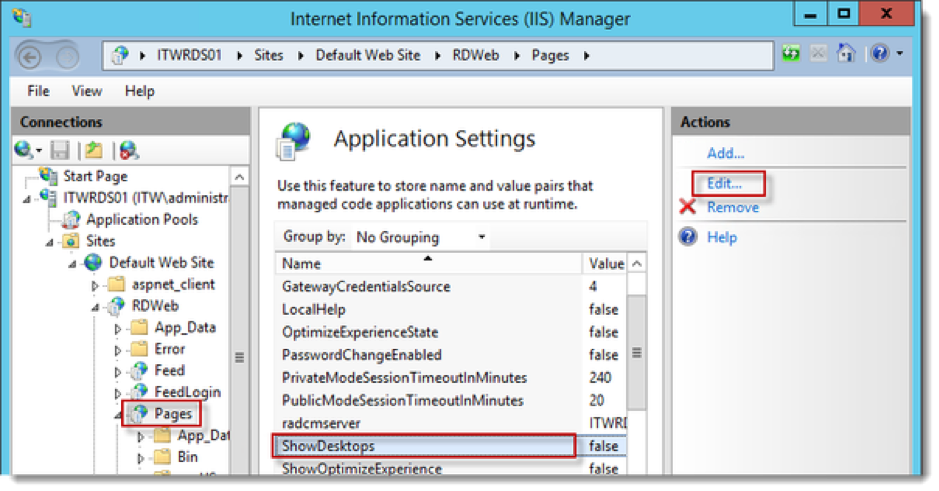
Expand the tree on the left and click Pages, then double-click Application Settings and select ShowDesktops. Notice its value is “true” by default, so click Edit and change it to “false”. This change is immediate, without the need to restart IIS.
The same IIS panel contains some other interesting values which can be customized:
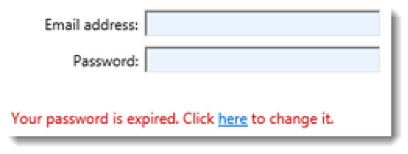
PasswordChangeEnabled. Notice its value is “false” by default, so click Edit to change it to “true”. This will allow the user to change his password when it has expired.
PrivateModeSessionTimeoutInMinutes or PublicModeSessionTimeoutInMinutes.
Click Edit to change the default value to something you prefer, or to something that your organization enforces.
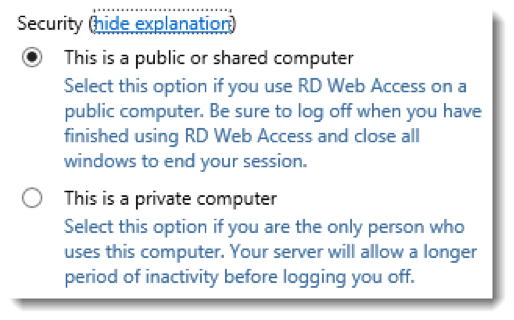
Unfortunately some other interesting customizations, such as setting a default Domain in the login panel, can only be done by editing some .aspx files!
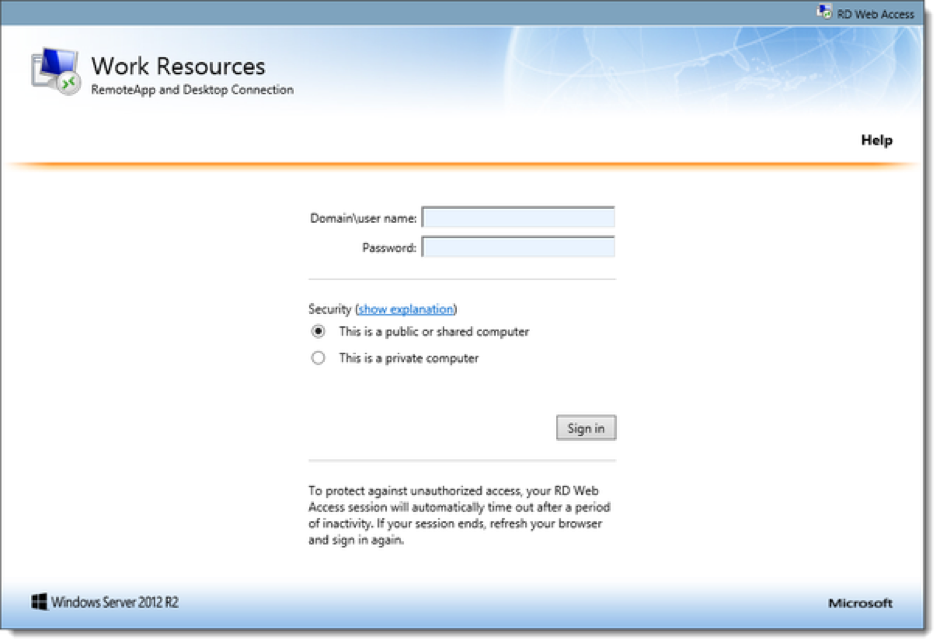
The default login panel in fact expects the NT User Account format, e.g. Domain\user name.
Measuring RDS Performance
In a complex distributed RDS environment, it’s difficult to measure RDS performance: the end user typically experiences site responsiveness in a different way than measuring the single Windows Performance Counters!
The correct way to measure RDS performance is by simulating users’ operations: the Alyvix product is designed for just this task. It can repeat these tasks continuously, building metrics based on common users’ RDS tasks.
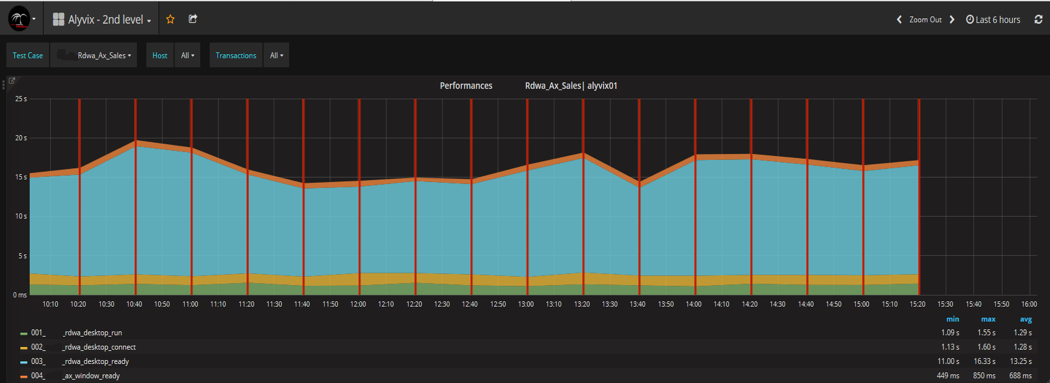
This way you can detect not only abnormal situations, but also bad long term trends.
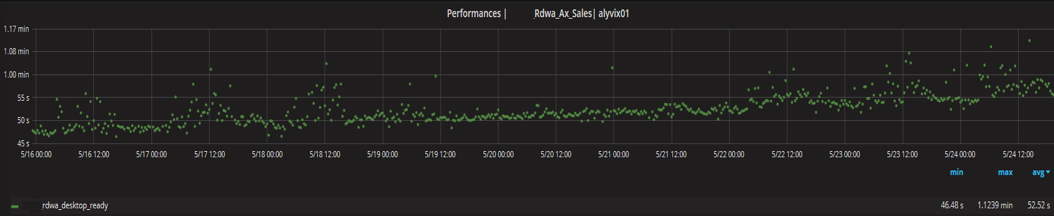
For example, in the graph above you can see that RDS Desktop Ready time has increased by about 10 seconds over 8 days.

Alessandro Romboli
Site Reliability Engineer at Würth IT Italy
My name is Alessandro and I joined Würth Phoenix (now Würth IT Italy) early in 2013. I have over 20 years of experience in the IT sector: For a long time I've worked for a big Italian bank in a very complex environment, managing the software provisioning for all the branch offices. Then I've worked as a system administrator for an international IT provider supporting several big companies in their infrastructures, providing high availability solutions and disaster recovery implementations. I've joined the VMware virtual infrastructure in early stage, since version 2: it was one of the first productive Server Farms in Italy. I always like to study and compare different technologies: I work with Linux, MAC OSX, Windows and VMWare. Since I joined Würth Phoenix, I could also expand my experience on Firewalls, Storage Area Networks, Local Area Networks, designing and implementing complete solutions for our customers. Primarily, I'm a system administrator and solution designer, certified as VMware VCP6 DCV, Microsoft MCP for Windows Server, Hyper-V and System Center Virtual Machine Manager, SQL Server, SharePoint. Besides computers, I also like photography, sport and trekking in the mountains.
Author

Latest posts by Alessandro Romboli
03. 12. 2025
Microsoft
Single Sign-On for Power BI Report Server
08. 09. 2025
Service Management
VMware ESXi Transparent Page Sharing
12. 06. 2025
Microsoft
Terminal Server User Profiles with FSLogix
05. 02. 2025
Knowledge Management, Service Management
Dynamics 365 Finance & Operations (On -Premises) Connectivity: New Authentication Model