
Scenario
Power BI Report Server is widely used in company environments, where typically several Windows servers with different roles are deployed in an OnPremise Active Directory domain.
In this blog, I’ll describe how to configure user single sign-on access to a Power BI Report Server: the underlying protocol for authentication will be Kerberos and its constrained delegation, which allows the Power BI report server to work as an agent for the connected user while accessing external data.
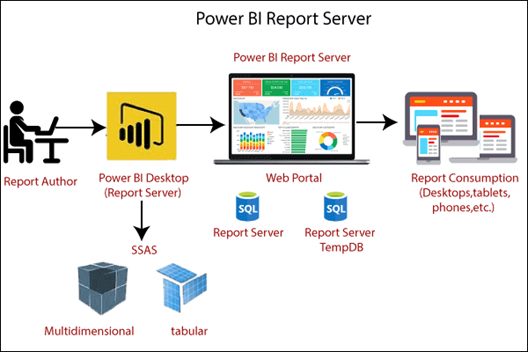
Let’s assume we have three different servers deployed in a “sample.local” Domain:
- SSRS Power BI Report Server (running under Group Managed service account
SAMPLE\SSRSsvc$) - SQL1 Microsoft SQL server (running under domain account
SAMPLE\SQL1svc) - SQL2 Microsoft Analysis service (running a named instance TABULAR under the domain account
SAMPLE\SSASsvc)
Kerberos Configuration for SQL Services
The first part of the configuration requires the definition of the Service Principal Names (SPN) for all the SQL services, which requires a user with Domain Administration privileges.
From an administrative command prompt with domain admin rights:
- Register 2 SPN names for the SQL1 services: (with and without the MS SQL port number)
SetSPN -s MSSQLSvc/SQL1.sample.local:1433 SAMPLE\SQL1svc
SetSPN -s MSSQLSvc/SQL1.sample.local SAMPLE\SQL1svc - Register 4 SPN names for the SQL2 services: (2 for SSAS and 2 for SQL Browser service)
SetSPN -s MSOLAPSvc.3/SQL2.sample.local:TABULAR SAMPLE\SSASsvc(where TABULAR is the instance name)SetSPN -s MSOLAPSvc.3/SQL2:TABULAR SAMPLE\SSASsvc
SetSPN -s MSOLAPDisco.3/SQL2.sample.local SQL2
SetSPN -s MSOLAPDisco.3/SQL2 SQL2
Kerberos configuration for BI Report server
The second part of the configuration requires the definition of the Service Principal Names (SPN) for the Power BI Report Server.
From an administrative command prompt with Domain admin rights:
- Register 2 SPN names for the SSRS server:
SetSPN -s HTTP/SSRS.sample.local SAMPLE\SSRSsvc$
SetSPN -s HTTP/SSRS SAMPLE\SSRSsvc$
The Power BI must be authorized for Kerberos constrained delegation: If the SSRSsvc user is a standard one, this also can be done through the user properties in the Active Directory Users & Computers GUI. If instead this service user is a group managed service account, note that this is not possible!
Let’s delegate it using PowerShell, which will work in both cases.
From a PowerShell admin window:
Set-ADAccountControl -Identity SAMPLE\SSRSsvc$ -TrustedForDelegation $false -TrustedToAuthForDelegation $false
Set-ADComputer -Identity SAMPLE\SSRSsvc$ -Add @{'msDS-AllowedToDelegateTo'=@( 'MSSQLSvc/SQL1.sample.local:1433, 'MSSQLSvc/SQL1.sample.local','MSOLAPSvc.3/SQL2.sample.local:TABULAR', 'MSOLAPSvc.3/SQL2:TABULAR','MSOLAPDisco.3/SQL2.sample.local SQL2','MSOLAPDisco.3/SQL2 SQL2')}
The first command enables the Kerberos-constrained delegation / Trust this computer for delegation to specified services only (use Kerberos only) while the second one lists all the 6 SPN names we have defined in the previous step for SQL1 and SQL2, allowing the report server to run as the connected user while accessing data on SQL1 and SQL2.
NOTE
Be sure that the Power BI report server is configured to access the SQL database with the full server name: in this example, SQL1.sample.local.
If the configuration refers to the short NETBIOS name (SQL1), edit it in the configuration by changing it to point at the database!
Change the Power BI report server authentication
The last step of the configuration requires the change of the Power BI report server configuration.
The file rsreportserver.config (the default location for this file is C:\Program Files\Microsoft Power BI Report Server\PBIRS\ReportServer) must be edited.
To do that, find the Authentication/AuthenticationTypes section and set the parameters as shown:
<AuthenticationTypes>
    <RSWindowsNegotiate/>
    <RSWindowsNTLM/>
</AuthenticationTypes>
With this configuration, the Power BI report server will attempt a Negotiate auth first with Kerberos, with NTLM fallback, which is required for client devices that don’t support Kerberos (like the mobile ones!)
Last step
Restart all the three servers to load the new Kerberos configuration and test the user single sign-on access.
Remember that all user web browsers must be configured to trust the Power BI report server name and forward the user credentials: the configuration is different from browser to browser, so specific configurations must be followed for MS Edge, Firefox, Chrome, Safari, ….
These Solutions are Engineered by Humans
Did you find this article interesting? Does it match your skill set? Our customers often present us with problems that need customized solutions. In fact, we’re currently hiring for roles just like this and others here at Würth IT Italy.



Alessandro Romboli
Author
