
29. 12. 2025
Mirko Morandini
Asset Management, GLPI
Stockroom Survival Guide: Manage Consumables in GLPI
Every IT department has it: the mythical stockroom with all those small parts, cables, plugs, adapters… and mice everywhere (each one with a long cable 😉). Once perfectly organized, it’s now the place where “things we might need someday” go to disappear – and no one remembers the rules for handing something out to the employees, or what to do when an item suddenly runs out. No worries, GLPI is here. Time to put it to work!
The ITSM tool GLPI is specifically designed for a company’s IT department. Out of the box, its asset management module provides a comprehensive representation of all types of IT assets – from server racks to phones, laptops, and even memory modules. These assets share one key characteristic: they are represented as individual objects and can usually be identified by a unique key, such as an inventory number, serial number, or host name.
For consumable items and low-value devices, however, it’s not practical to create and identify each object individually. In these cases, it’s sufficient to track the quantity of items in stock.
GLPI provides a dedicated module to perform stock management for these items, allowing you to:
- Register consumables with detailed attributes (type, reference, supplier, cost)
- Track stock levels and set minimum thresholds for alerts
- Issue consumables to users or groups, ensuring traceability
- Monitor usage history, enabling accurate forecasting and order management
- Trace consumables expenses in budgets
In Consumables, instead of creating each item – for example a keyboard – as a separate object, you create a model and then manage stock quantities under that model: First, define the keyboard model with basic properties such as type, manufacturer, storage location, technician in charge, an image and comments, the stock target and an alert threshold. When the stock falls below the alert threshold, GLPI can generate a notification suggesting to order the items needed to reach the stock target.
Restock and Allocate Consumables
Once you’ve defined the model, go to the second tab called “Consumables” (same as the menu entry) and add a number of items to the stock. You’ll now see a list of items in stock, under the state “new”.
For consumable models, the Financial Management tab has a specific role that’s clearly described in the GUI: “For this type of item, the financial and administrative information are only a model for the items which you should add”. Of course, it makes no sense to define an order date and number, a delivery date, a specific cost value, a budget or warranty information for a generic model.
This data needs to be adapted each time a new order is delivered, and is saved individually to each item you add to the stock. For example, on 07.08.2025 you purchased three keyboards at 84€ each, and on 18.08.2025 another three at 81,20€ each. The values of the single items will then be correctly reflected in Budget Management.
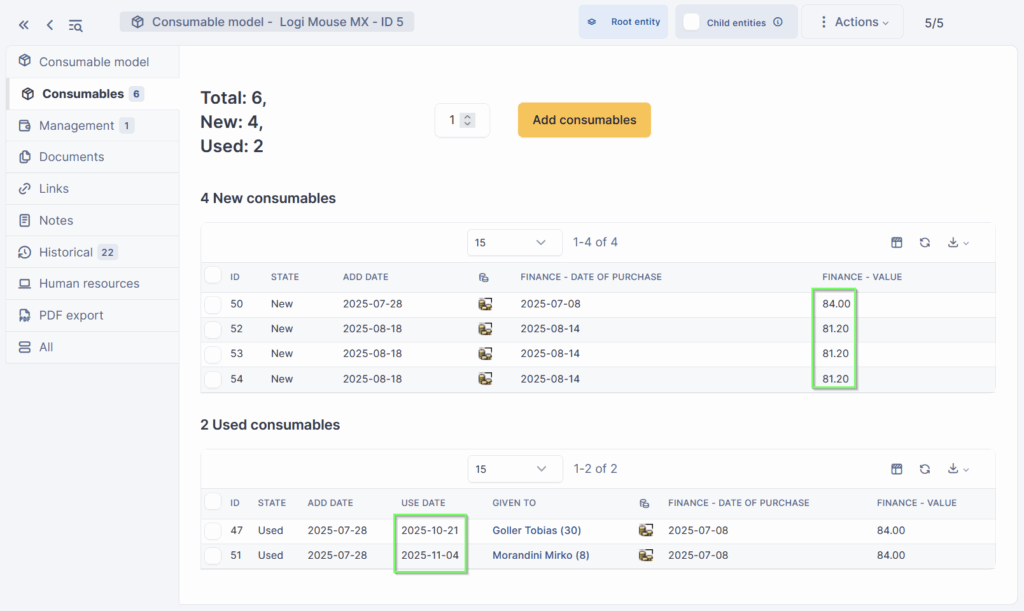
Each time you hand out an item to a colleague or customer, select one from stock and click on Actions → Give. If an item is returned, select Actions → Back to stock accordingly.
Voilà, you’ve now obtained clean management of your stockroom!
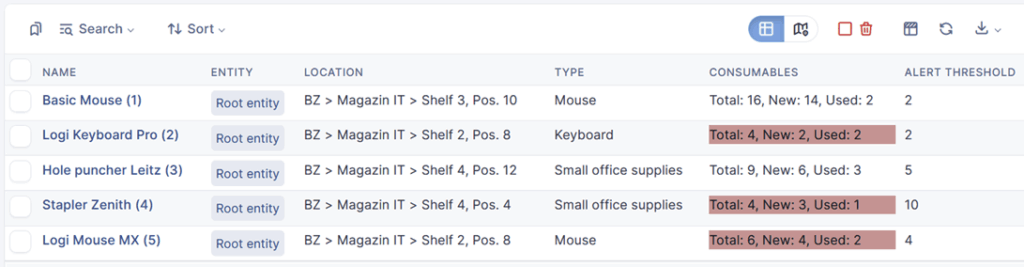
The “Summary” menu button near the standard “add” button on the top of the page allows you to see a summary of all items handed out to each customer.
Alert Notifications
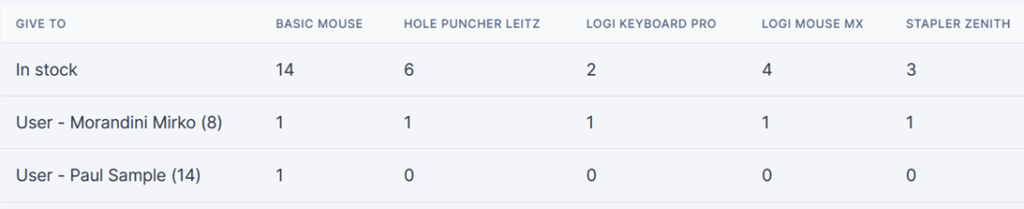
GLPI can alert you (the administrator, or some other GLPI role) with an e-mail when consumable stock falls below defined thresholds. Mails will be sent at specific intervals (e.g. once a day or once a week), and list all the consumables that need to be restocked, with the stock target and the number of items to order. To enable this, you need to follow a few more steps:
- Go to Setup → Entities, select your entity; under Alarm options, enable “alarms on consumables“, and set the reminders frequency (default: weekly).
- Go to Setup → Notifications → Notifications, ensure the notification “Consumables” is enabled and set at least one recipient (e.g. the entity administrator).
- Go to Setup → Automatic Actions → consumable, and ensure that it’s scheduled. Try to execute it by hand, then check the log tab and the notification queue.
And just like that, another storeroom has lost its magic! 😉
— Würth IT Italy, based in Bolzano/Bozen, South Tyrol, is an official GLPI Gold partner for Italy, and for the German speaking market (Germany, Austria, Switzerland) through its spin-off Gravitate.
These Solutions are Engineered by Humans
Did you find this article interesting? Does it match your skill set? Our customers often present us with problems that need customized solutions. In fact, we’re currently hiring for roles just like this and others here at Würth IT Italy.


Mirko Morandini
Mirko Morandini, PhD, is a senior consultant in IT Service Management and Asset Management, with over a decade of experience and numerous successful projects in Germany, Austria and Italy. As the GLPI advocate at Würth IT Italy, Mirko is passionate about open source solutions - and when he’s not optimizing IT processes, he enjoys spending time with his family and playing and conducting wind band music.
Author

Latest posts by Mirko Morandini
29. 09. 2025
Asset Management, GLPI, Knowledge Management, Service Management
Getting the M(u)st out of GLPI
30. 06. 2025
Asset Management, Unified Monitoring
Das neue GLPI 11 – offizielle deutsche Vorstellung [DE]
31. 03. 2025
Asset Management, GLPI, Knowledge Management, NetEye
GLPI: Automated Inventory Without Using GLPI Agents
23. 12. 2024
Asset Management, Service Management
GUI-based Setup of GLPI Network Inventory: The Agent Toolbox
16. 12. 2024
Asset Management
GUI-based GLPI Network Inventory Setup with the “GLPI Inventory” Plugin